Whether you're planning a wedding, birthday party, corporate conference, or just want a simple way to collect photos from friends — Yealo makes it fast and easy. And the best part? As you build your event, a live phone preview updates in real time so you can see exactly what your guests will experience before you publish anything.
Let's walk through the entire process.
Step 1: Choose Your Event Type
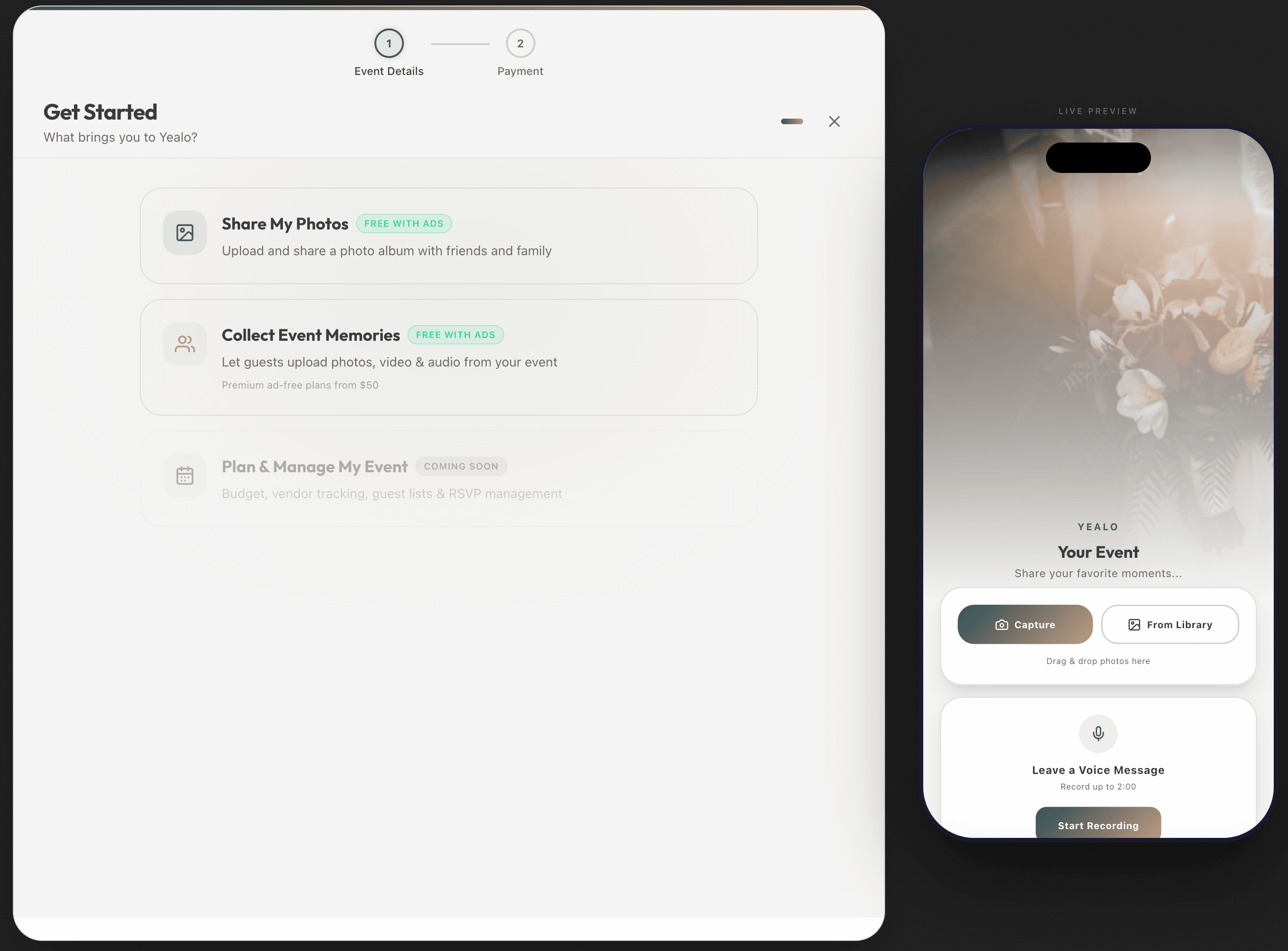
When you hit "Create Event" from your dashboard, the first thing you'll see is a choice between two flows:
- Share an Album — A streamlined flow for when you just want to collect and share photos. Perfect for casual gatherings, trips, or any time you want a shared gallery without the full event setup.
- Plan an Event — The full event flow with date, venue, vendor management, and all the bells and whistles. Ideal for weddings, corporate events, and organized celebrations.
Pick whichever fits your needs — you can always add details later from your dashboard.
Step 2: Name Your Event
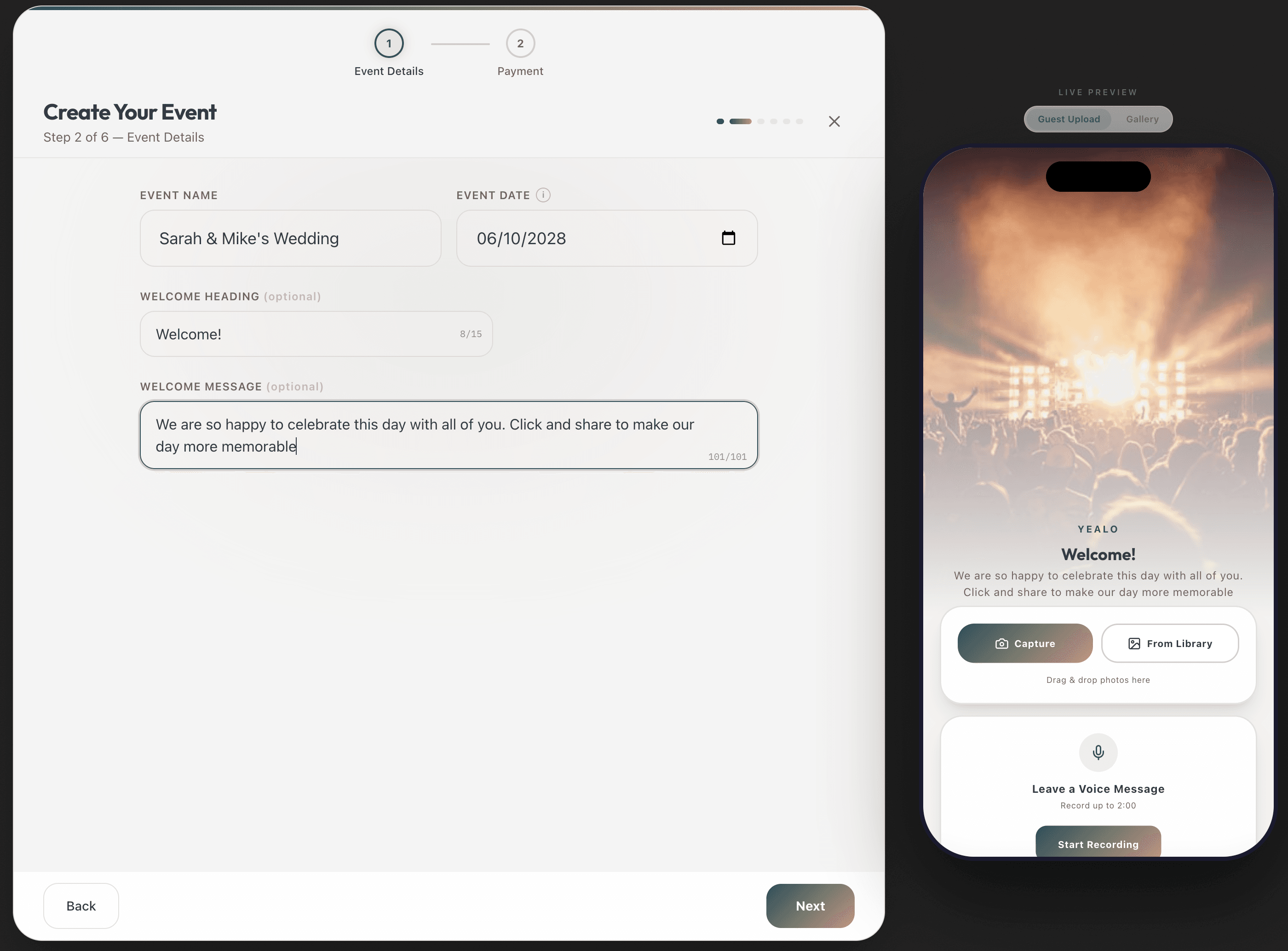
Give your event a name — this is what guests will see when they open your event link. For the "Plan an Event" flow, you'll also set the event date and optionally customize the welcome heading and message that appear on your event page.
- Event Name — "Sarah & Jake's Wedding," "Company Retreat 2026," "Mom's 60th Birthday"
- Welcome Heading — A short title displayed on the upload page (e.g., "Welcome to our wedding!")
- Welcome Message — A brief message for your guests (e.g., "We'd love to see your photos from tonight!")
Notice the live phone preview on the right side of the screen — as you type your event name, heading, and message, the phone mockup updates instantly. This is a real-time preview of exactly what your guests will see when they scan your QR code. No guessing, no surprises.
Step 3: Cover Image & Color Theme
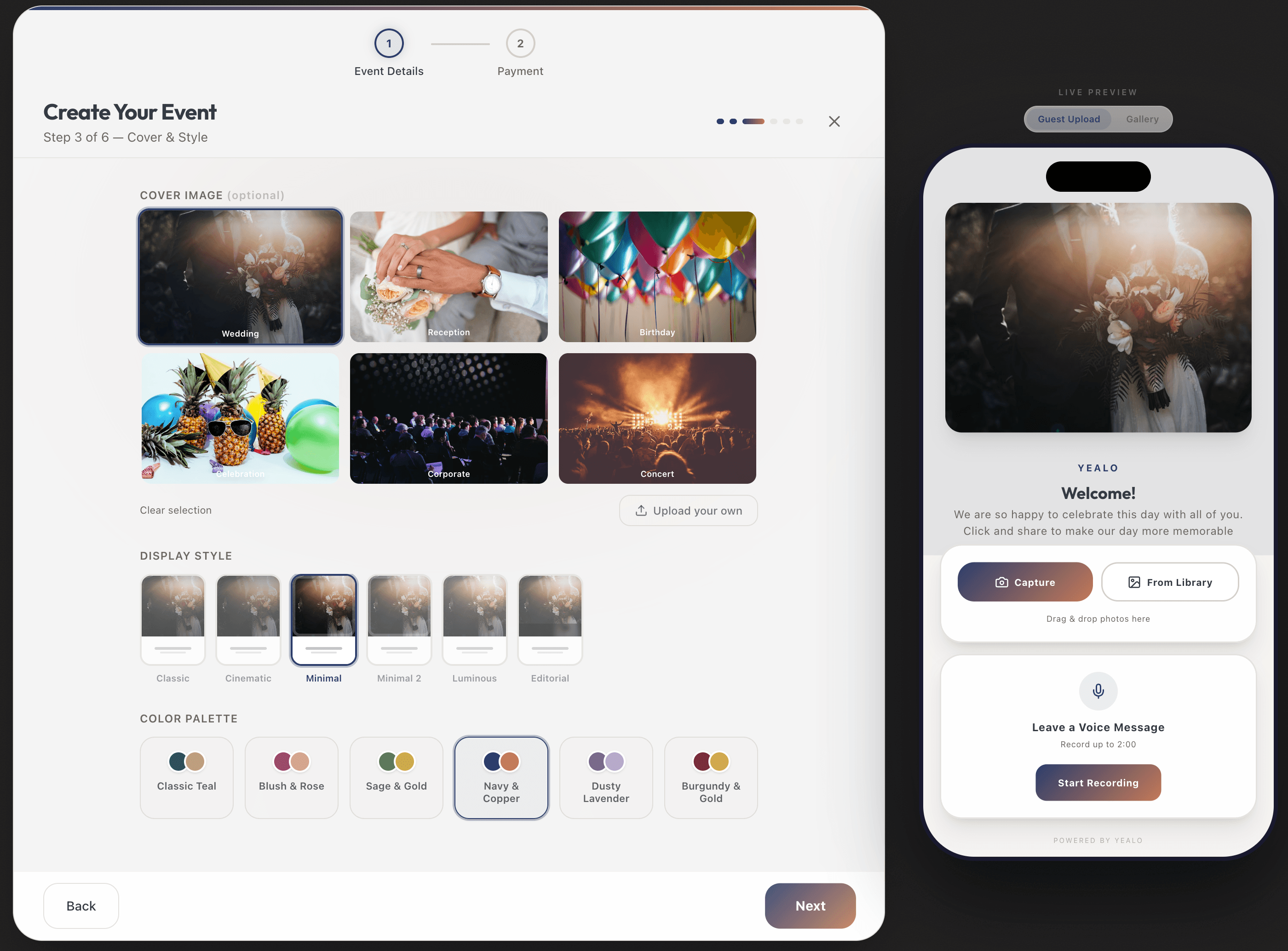
This is where your event gets its look and feel. You have two options for the cover image:
- Preset images — Choose from curated photos for weddings, birthdays, corporate events, concerts, and more.
- Upload your own — Use any photo you like. You can adjust the focal point so the most important part of your photo is always visible, even on different screen sizes.
Next, pick a color palette. Yealo comes with multiple palettes that style the entire guest experience — buttons, gradients, accents, and gallery themes all update to match. You'll also choose a hero layout style that controls how the cover image and text are arranged on the page.
The phone preview is especially useful here — watch the cover image, colors, and layout change live as you experiment with different combinations. You can try every palette and style without committing to anything.
Step 4: Choose Your Plan
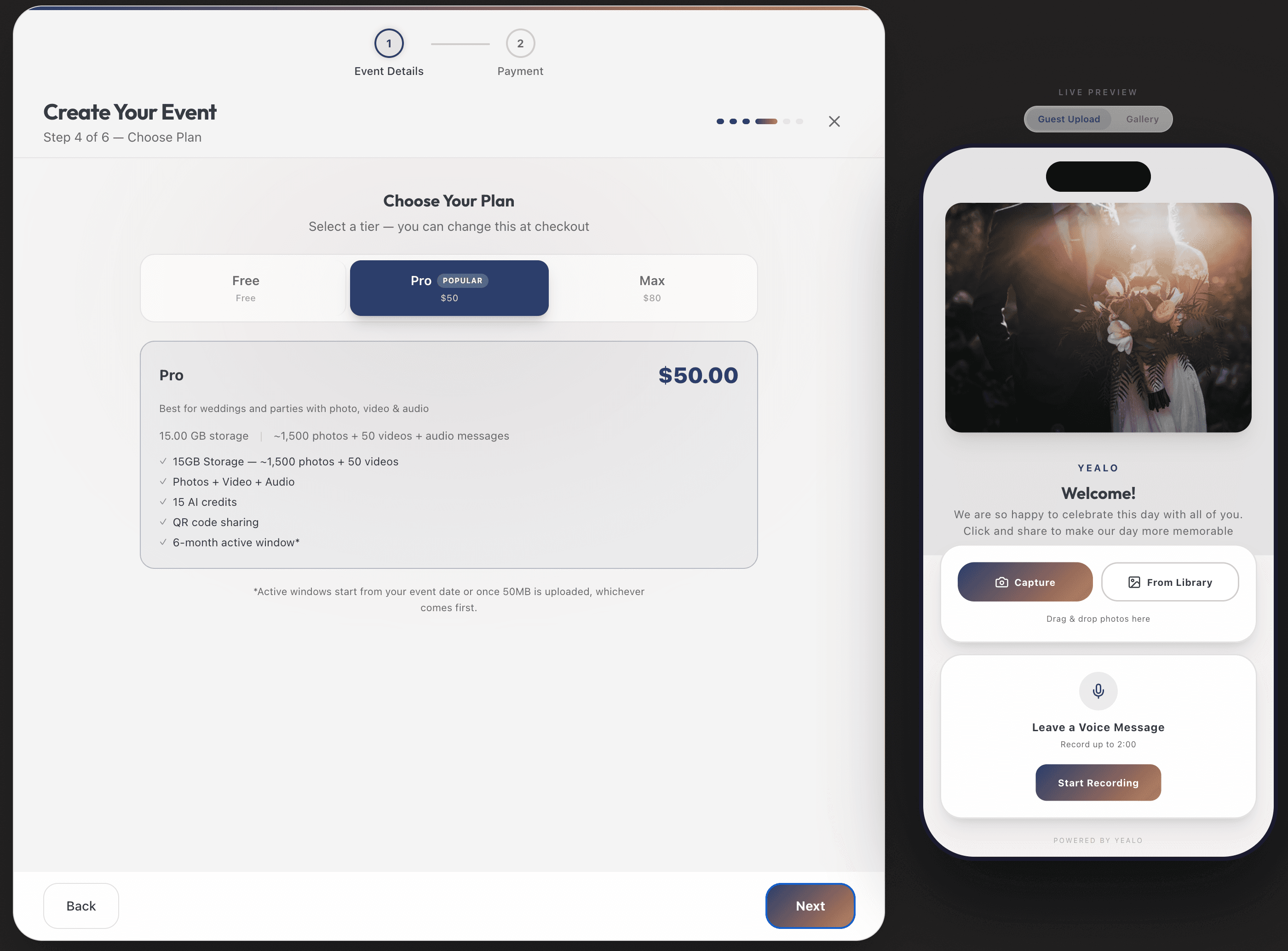
Yealo offers three tiers to match your event size and needs:
| Feature | Free | Medium ($50) | Max ($80) |
|---|---|---|---|
| Storage | 1 GB | 15 GB | 100 GB |
| Active Window | 14 days | 180 days | 365 days |
| Video uploads | — | Yes | Yes |
| AI Credits | — | 5 | 20 |
| SMS Campaigns | — | — | Included |
You can start with the free tier and upgrade anytime from your dashboard. All paid tiers are one-time payments per event — no subscriptions or recurring charges.
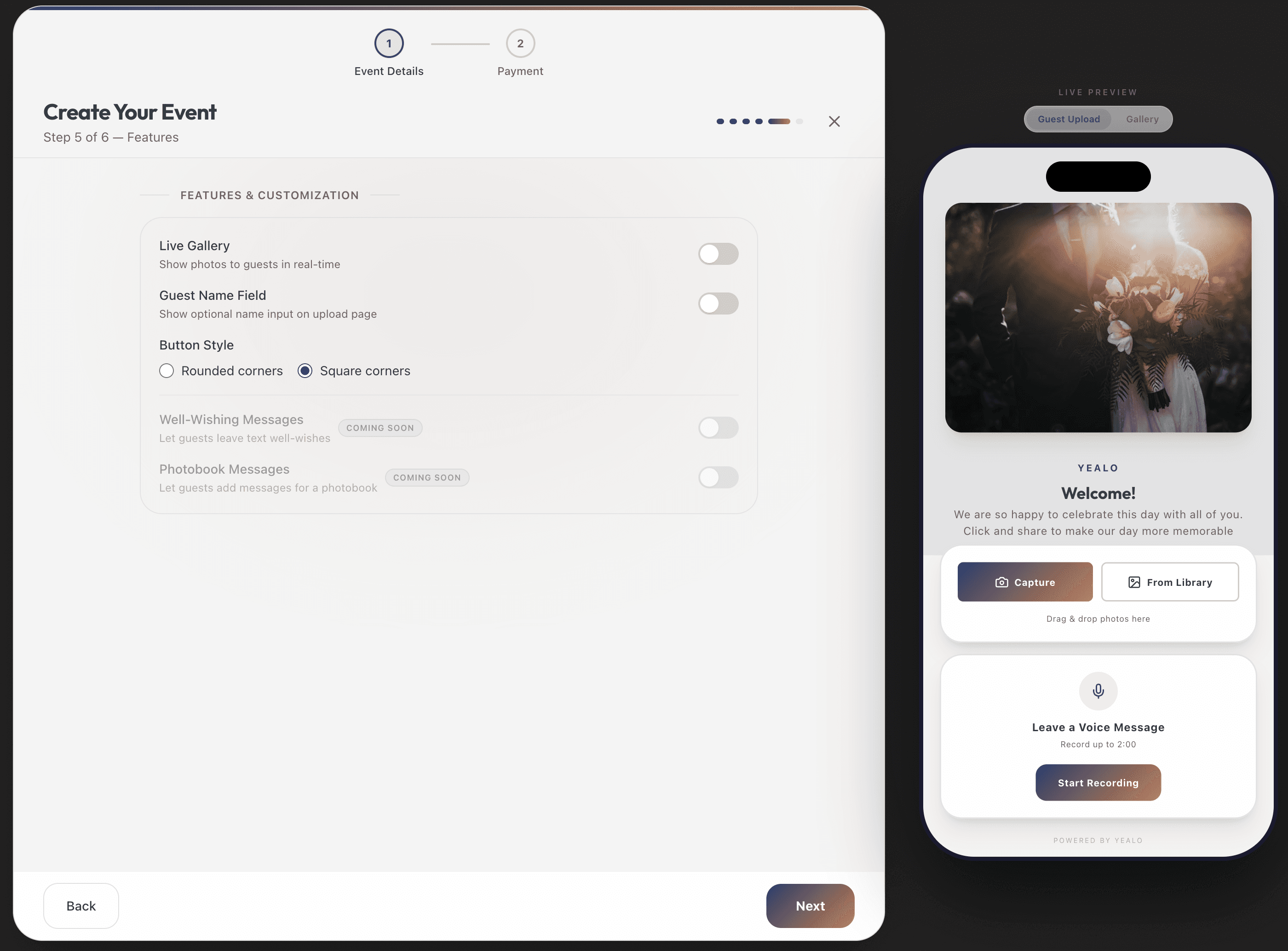
Step 5: Customize Features & Add-ons
Fine-tune your event experience with optional features:
- Guest gallery access — Let guests browse the full photo gallery, not just upload.
- Guest name collection — Optionally ask guests to enter their name when uploading, so you know who took which photos.
- Button style — Choose between rounded or square buttons to match your event's aesthetic.
- Add-ons — Extra storage, additional AI credits, TV slideshow, face recognition, and more. Add only what you need.
Step 6: Venue & Vendors (Event Flow Only)
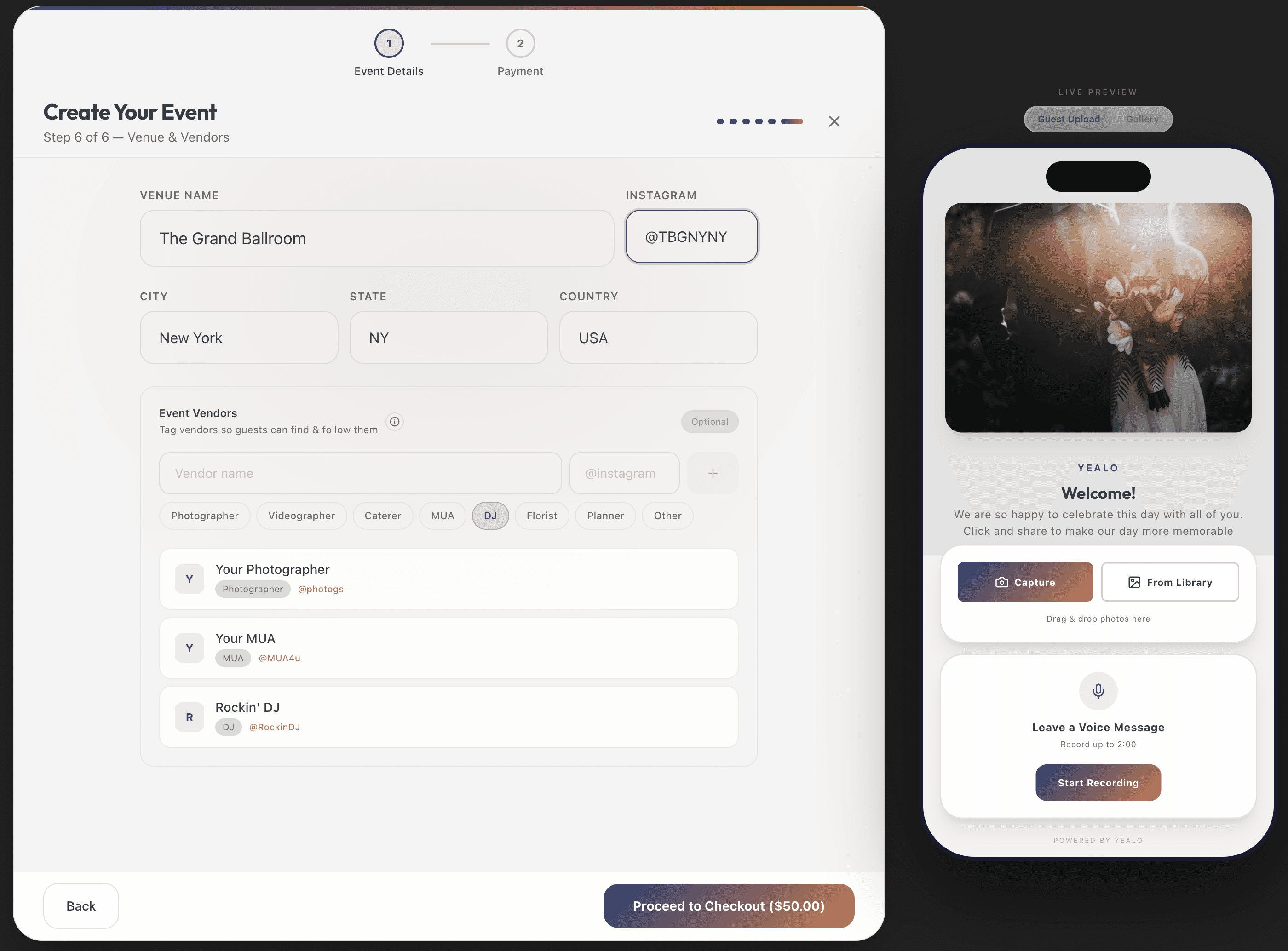
If you chose "Plan an Event," you'll get an extra step to add your venue and vendor details:
- Venue name and location — City, state, country, and Instagram handle.
- Vendors — Add your photographer, videographer, DJ, caterer, florist, makeup artist, planner, or any custom vendor category. Include their Instagram handles for easy tagging.
This information is saved to your event dashboard for reference and can be shared with your vendor team.
You're Live: Your Dashboard
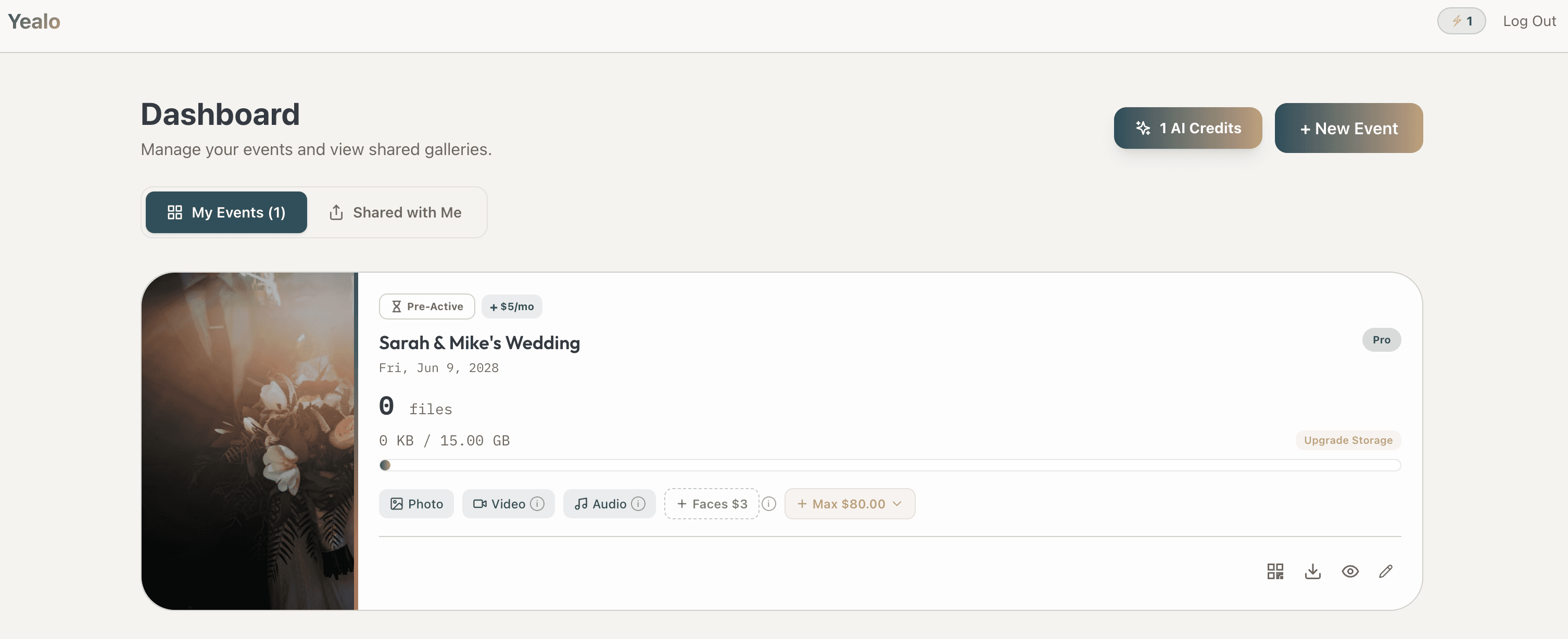
After creating your event, you're taken to your event dashboard. From here you can:
- Copy your shareable link — Send it via text, email, or social media.
- Download your QR code — Print it on table cards, signs, programs, or invitations.
- View uploaded photos — See everything guests have uploaded in real time.
- Launch a TV slideshow — Cast photos to any screen with a short URL.
- Send SMS invites — Blast your guest list with the event link (Max tier).
- Run face recognition — Automatically organize photos by person.
- Manage settings — Update cover image, lock uploads, archive the event, and more.
Share Your QR Code
Your QR code is ready to print the moment your event is created. Guests scan it with their phone camera — no app needed — and they're taken directly to the upload page. The whole process takes under 30 seconds for guests.
What Your Guests See
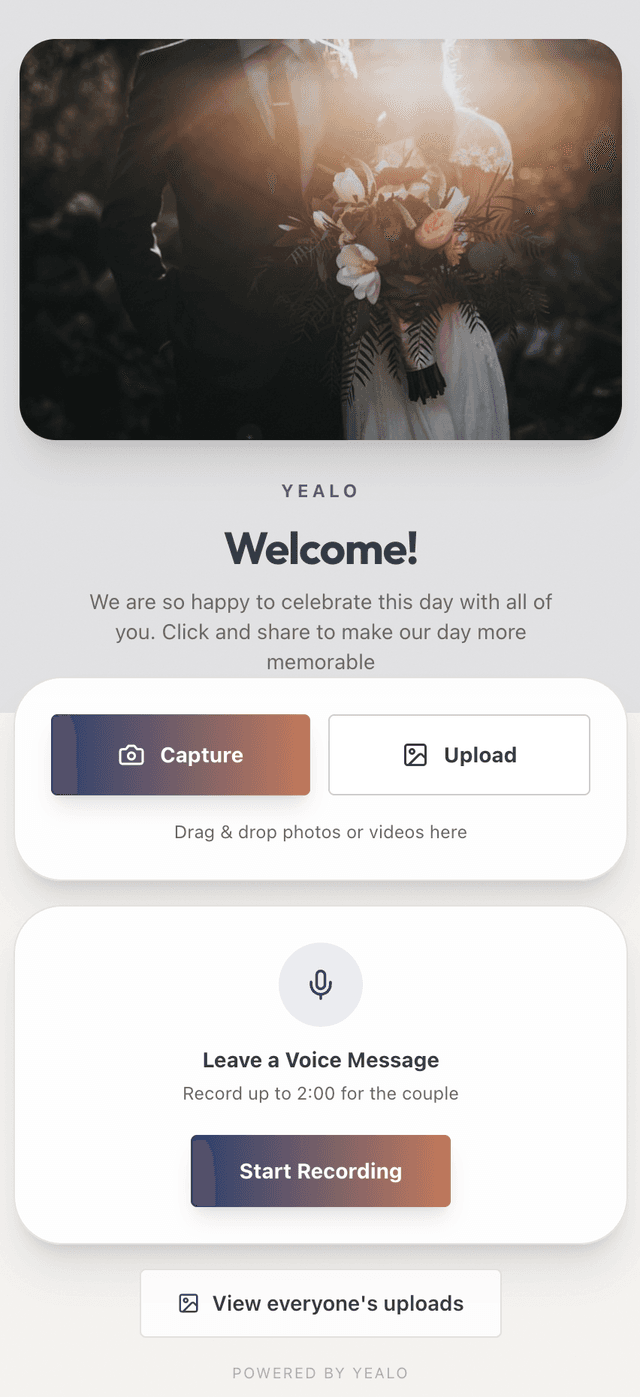
When guests scan your QR code or tap your event link, they see a beautifully designed upload page — the same one you previewed during setup. Your cover image, color theme, welcome heading, and message are all there. No sign-up required. No app to download. They simply:
- Tap "Upload Photos" (or "Take a Photo" to use their camera)
- Select photos from their camera roll
- Photos upload automatically with a progress indicator
- Done — photos land in your gallery instantly
Remember that phone preview from the create flow? This is what it looks like on a real guest's phone:
The Gallery: Every Photo in One Place
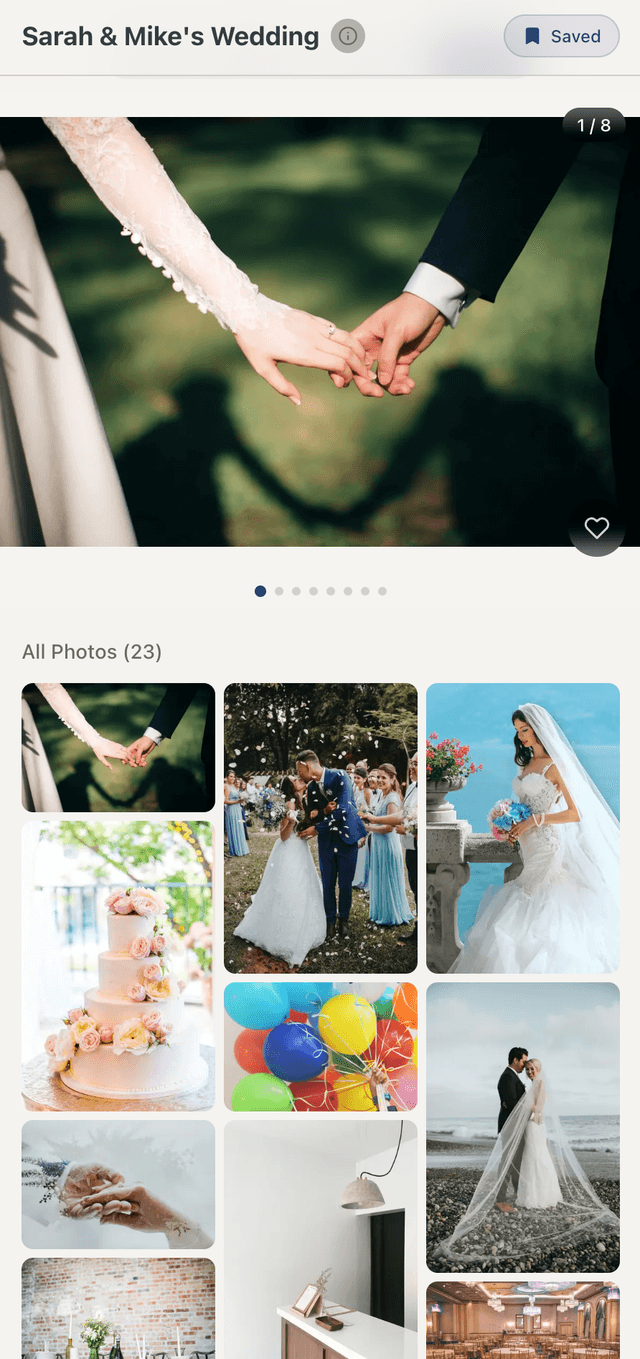
As photos come in, they populate a beautiful gallery that guests can browse too (if you enable guest gallery access). The gallery works on any device and supports full-screen lightbox viewing, face-based photo organization, and one-click downloads.
That's It — 60 Seconds to Live
From hitting "Create Event" to having a live QR code ready for guests, the entire process takes about 60 seconds. No technical setup, no complicated configuration. Just name it, style it, and share it.
Every photo your guests take ends up in one beautiful gallery — organized, downloadable, and shareable. Whether it's 10 photos from a dinner party or 2,000 from a wedding, Yealo handles it all.